
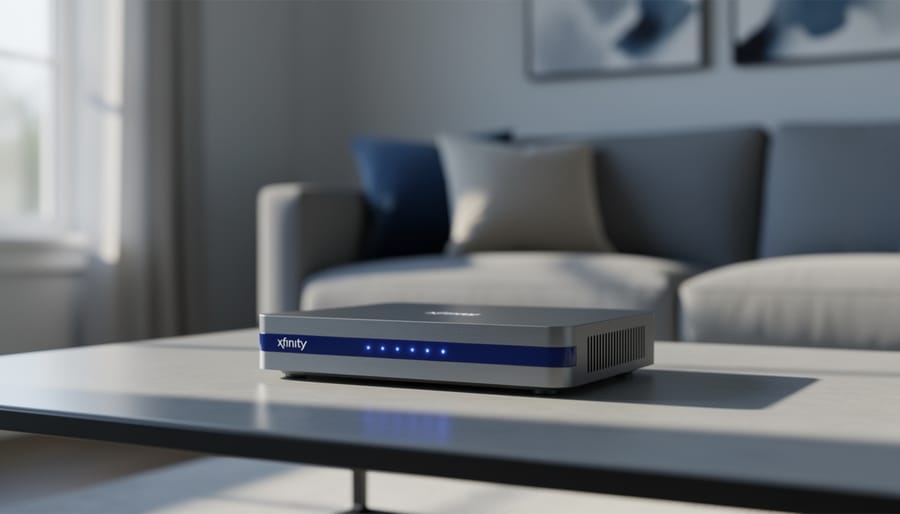
Xfinity’s equipment costs vary by model and service tier, with rental fees typically ranging from $14 to $15 per month for the latest WiFi Gateway or $0 when bundled with certain internet plans. Purchasing compatible third-party equipment eliminates recurring rental charges but requires an upfront investment that generally falls between $100 and $300, similar to other budget electronics cost considerations. Installation adds another layer to the total expense, with professional setup fees approaching $100 versus $0 for self-installation.
The Xfinity Advanced Gateway (XB10) represents the company’s newest technology in 2026, combining Unified DOCSIS 4.0 with WiFi 7 (802.11be) to deliver multi-gigabit speeds across tri-band frequencies at 2.4GHz, 5GHz, and 6GHz. This all-in-one device functions as both modem and router, simplifying setup for customers who want the latest performance without managing separate components. Xfinity recommends updating equipment every two to three years to maximize internet subscription value, positioning the XB10 as the current flagship option for speed-conscious households.
Whether to rent Xfinity’s newest gateway or purchase your own compatible equipment hinges on how long you plan to stay with the service and your comfort level with technology maintenance. Before buying third-party gear, verify compatibility through Xfinity’s My Device Info tool, which provides personalized results based on your address and service type. Customers in fiber-delivered communities have the flexibility to use routers from third-party retailers, expanding their options beyond Xfinity-supplied hardware.
Equipment Rental vs. Purchase: What You’ll Pay
Renting Xfinity Equipment
Renting equipment directly from Xfinity is the most common way to get the hardware you need for internet service. Under this model, you pay a monthly fee rather than an upfront purchase price. While Xfinity does not publicly disclose all rental pricing details on its website, the rental fee typically covers the gateway device that functions as both your modem and router. The rent vs buy decision often comes down to convenience versus long-term cost.
One major advantage of renting is that Xfinity handles equipment upgrades. Since the company recommends updating your device every two to three years to maximize your internet subscription’s performance, renters benefit from access to newer equipment as it becomes available. You also get technical support included with your rental, meaning if your gateway fails or needs troubleshooting, Xfinity will assist you directly. This removes the burden of diagnosing hardware issues yourself or purchasing replacement equipment out of pocket. For users who prefer a hands-off approach and want the latest technology without tracking compatibility requirements, renting offers simplicity and ongoing support.
Buying Your Own Equipment
Purchasing your own equipment requires an upfront investment but eliminates monthly rental fees over time. You’ll need a modem compatible with Xfinity services that supports your subscribed internet speed, and in some setups, a separate router for WiFi. Costs vary widely based on equipment specifications, but you’ll own the device outright rather than paying continuously.
Compatibility is critical. Not all retail modems work with Xfinity’s network, and choosing equipment that doesn’t support your speed tier means you won’t get what you’re paying for. Xfinity provides a compatibility checker through My Device Info where you can verify whether a specific device works with their services before purchasing.
This option is most accessible in fiber-delivered communities, where members can use routers purchased from third-party retailers. For cable-delivered service, you’ll need both a compatible DOCSIS modem and potentially a router, which adds complexity to the buying decision. If you’re unsure about technical setup or troubleshooting, rental equipment includes Xfinity’s support, while purchased devices mean you’re responsible for configuration and any issues that arise.
Installation Cost Breakdown
Installation costs for Xfinity equipment split into two main paths: self-installation and professional technician service. Understanding when each makes sense helps you avoid unnecessary fees while ensuring a smooth setup.
| Installation Method | Typical Cost | Best For |
|---|---|---|
| Self-Installation (Replacement Equipment) | No charge | Existing customers upgrading equipment; comfortable with basic tech setup |
| Self-Installation (New Service) | Varies by situation | Tech-comfortable users; homes with existing cable connections |
| Professional Technician | Service fee may apply | New installations requiring wiring; complex setups; users wanting guaranteed configuration |
Self-installation works well for straightforward situations. If you’re replacing existing equipment, say, swapping an older gateway for Xfinity’s newest Advanced Gateway (XB10), you typically won’t face installation charges. Xfinity ships the new device with clear instructions, and the process involves connecting cables and following on-screen prompts. Most users handle this in 30 minutes or less.
Professional installation becomes relevant when physical work is needed. New service requiring cable runs, wall jacks, or outdoor line connections justifies a technician visit. The service fee covers not just equipment hookup but also any necessary infrastructure work and verification that everything performs correctly at your subscribed speed tier.
Technical comfort matters here. If you’re uncertain about connecting coaxial cables, accessing your router settings, or troubleshooting connectivity issues, a professional install eliminates guesswork. The technician ensures proper placement for WiFi coverage and confirms all devices connect successfully before leaving.
For existing customers simply upgrading equipment, self-installation offers the most budget-friendly path. New customers should weigh their home’s current wiring situation and their own technical confidence against the one-time installation fee.
What Affects Xfinity Equipment Pricing
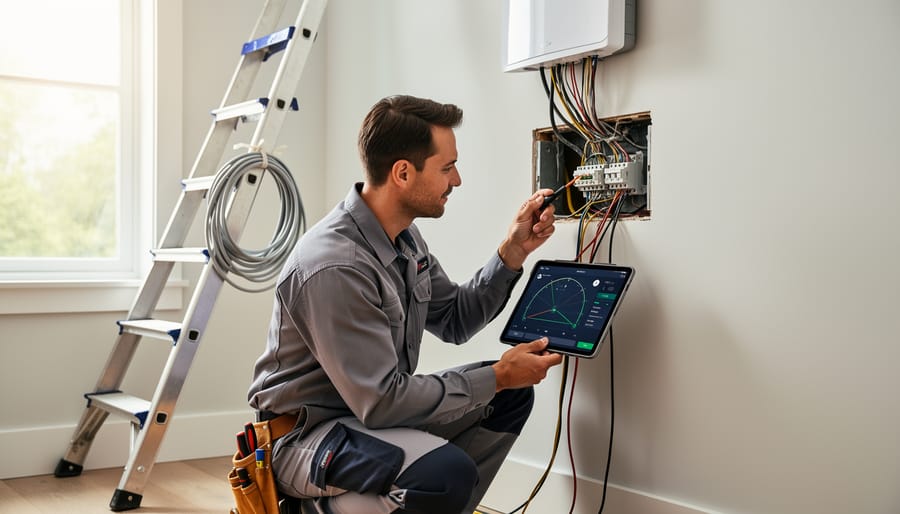
Your Internet Speed Tier
Your Xfinity Internet plan’s speed tier directly determines the equipment you need. A device that works perfectly for a 300 Mbps plan won’t support the full bandwidth of a gigabit or multi-gigabit connection. If your gateway can’t handle your subscribed speeds, you’re paying for performance you’ll never see.
Xfinity’s equipment recommendations scale with plan speeds. The newest Advanced Gateway (XB10), for instance, is built for multi-gigabit service with DOCSIS 4.0 and WiFi 7 technology. Slower tiers can work with older gateways, but each device has a ceiling. When you upgrade your speed plan, your equipment may need to upgrade too, either through a swap to newer rental hardware or by purchasing a compatible third-party device rated for your tier. Before committing to any equipment, use Xfinity’s My Device Info tool to confirm it supports your specific plan speed.
Equipment Age and Upgrade Eligibility
Xfinity recommends updating your equipment every two to three years to maximize your internet subscription’s performance. This timeline matters because internet technology evolves rapidly, and older devices may not support the speeds or features you’re paying for. When your gateway approaches this age threshold, you’ll likely receive upgrade recommendations through your account portal or customer communications.
Using outdated equipment carries practical trade-offs. Devices more than a few years old may lack support for newer speed tiers, limiting your ability to upgrade your plan without also replacing your hardware. They may also lose access to security patches and firmware updates, leaving your network more vulnerable. While Xfinity typically doesn’t force immediate replacement, continuing with unsupported equipment means forgoing performance improvements and potentially missing out on technical support for device-specific issues.
The upgrade process itself often comes at no additional charge if you’re renting equipment. Xfinity typically replaces aging gateways for rental customers without extra fees, though you may need to request the swap through customer service or self-service channels. This built-in refresh cycle is one advantage of the rental model compared to purchasing, where you’d absorb the full replacement cost when technology moves forward.
Service Delivery Method
Your delivery method, cable (DOCSIS) or fiber, shapes both equipment choices and costs. Most Xfinity customers receive internet through cable infrastructure using DOCSIS technology, which requires a compatible modem or gateway. In this scenario, Xfinity typically provides the necessary equipment as part of your service, either through rental or as part of your plan.
If you live in a community where internet is delivered to individual units over fiber, your options expand. In fiber-delivered communities, you can use routers purchased from third-party retailers, giving you control over upfront costs and eliminating ongoing rental fees. This flexibility matters when managing long-term equipment expenses, since buying your own router means no monthly charges, though you’ll pay more initially and handle your own upgrades.
Before choosing the buy-your-own route, verify compatibility using Xfinity’s My Device Info tool. Sign in for personalized results based on your address and service, or enter your address without signing in. The tool confirms whether a device works with Xfinity services and supports your subscribed internet speed, preventing costly compatibility mistakes that could leave you with unusable equipment.
Self-Install vs. Professional Installation: Cost and Trade-offs
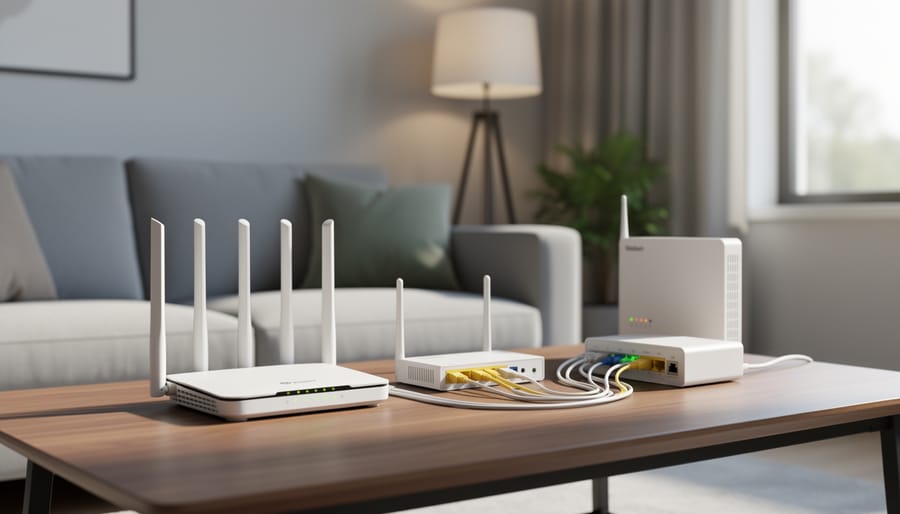
Choosing between self-installation and professional technician assistance comes down to balancing cost, confidence in your technical skills, and how quickly you need service running. Self-installation typically carries no charge when you’re replacing existing equipment or activating a new gateway in a home already wired for Xfinity service. Professional installation, by contrast, generally incurs a service fee that varies based on complexity and any additional wiring or configuration required.
The self-install route works well if you’re comfortable following step-by-step instructions and troubleshooting basic connectivity issues. Xfinity provides detailed guides and an activation app that walks you through connecting cables, powering up the gateway, and establishing your network. Most self-installations take 30 to 60 minutes, though you should allow extra time if you encounter issues like finding the right cable outlet or resolving signal problems. The main advantage is immediate cost savings and flexibility to set up on your schedule without waiting for a technician appointment window.
Pros
- Self-install eliminates the technician fee, saving you upfront costs.
- You can complete setup on your own timeline without scheduling an appointment.
- The process is straightforward for tech-comfortable users with existing cable connections.
Cons
- Professional installation handles any wiring issues or signal problems immediately.
- Technicians verify optimal placement and configuration for your home layout.
- Self-install troubleshooting falls on you, which can extend setup time if problems arise.
- Professional service includes expert testing to ensure you’re getting subscribed speeds.
Professional installation makes more sense when your home needs new cable runs, outlet installations, or if you’re uncertain about technical requirements. Technicians bring diagnostic tools to measure signal strength, identify wiring problems, and optimize gateway placement for coverage. They also handle scenarios that self-install kits don’t address, like connecting multiple outlets or resolving interference issues. If you’re upgrading to the Advanced Gateway (XB10) to take advantage of multi-gigabit speeds, a technician can verify that your home’s infrastructure supports those speeds and make adjustments if needed.
The trade-off ultimately depends on your situation. If you have straightforward needs, existing connections, and basic technical comfort, self-install delivers immediate savings. If you value expert verification, need infrastructure work, or prefer guaranteed same-visit resolution of any issues, the professional installation fee buys peace of mind and optimized performance from day one.
Xfinity’s Latest Equipment: The Advanced Gateway (XB10)
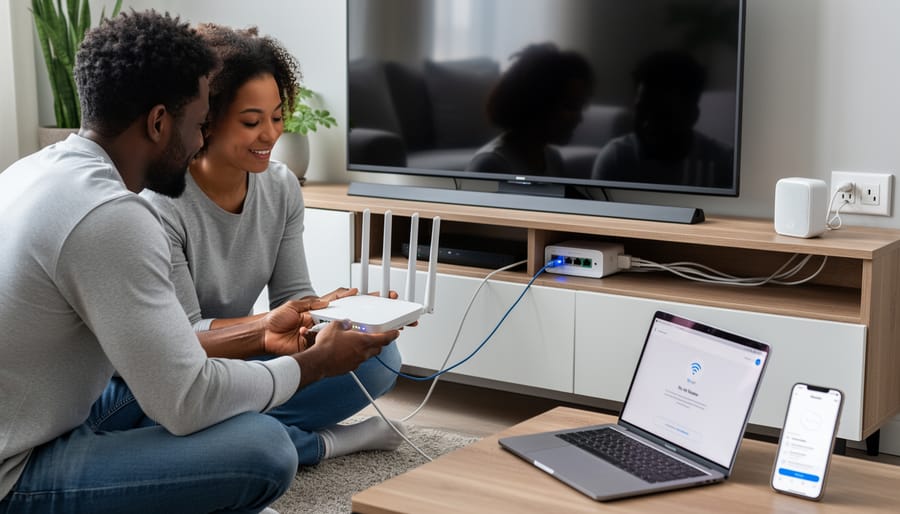
Key Features and Technology
The XB10 Advanced Gateway represents a significant leap in home networking technology by merging Unified DOCSIS 4.0 with WiFi 7 (802.11be), making it the first Xfinity device to combine these standards. This dual-function device serves as both modem and router, eliminating the need for separate units while delivering multi-gigabit speeds that can handle bandwidth-intensive tasks across multiple devices simultaneously.
The gateway’s technical capabilities include:
- Tri-band wireless operation across 2.4GHz, 5GHz, and 6GHz frequencies for optimal device distribution
- WiFi 7 (802.11be) standard support, offering lower latency and higher throughput than previous WiFi generations
- Unified DOCSIS 4.0 technology for enhanced downstream and upstream cable internet performance
- Multi-gigabit speed delivery to support households with numerous connected devices and high-bandwidth applications
The 6GHz band is particularly notable, as it provides a less congested spectrum for compatible devices, reducing interference from neighboring networks. For users with demanding networking needs like 4K streaming on multiple screens, large file transfers, or real-time gaming, the XB10’s combined capabilities address congestion issues that can plague older equipment, especially during peak usage hours when multiple household members compete for bandwidth.
Who Benefits from the Latest Equipment
Upgrading to the XB10 Advanced Gateway makes the most sense for households with high-bandwidth demands and multiple connected devices. If you regularly stream 4K or 8K video on several screens simultaneously, participate in competitive online gaming, or work from home with frequent video conferencing and large file transfers, the multi-gigabit speeds and tri-band WiFi 7 technology deliver noticeable performance improvements. Homes with smart home ecosystems, where dozens of IoT devices compete for bandwidth, also benefit from the 6GHz band’s reduced congestion and lower latency. Conversely, if your typical usage centers on casual web browsing, email, and occasional streaming on one or two devices, you likely won’t see a meaningful difference from your current equipment, especially if it’s less than two years old. The XB10’s capabilities shine when your internet plan and usage patterns actually push into multi-gigabit territory; otherwise, older equipment supporting your subscribed speed tier remains perfectly adequate.
How to Check Equipment Compatibility and Costs
Xfinity provides a straightforward way to verify whether equipment works with your service and to get specific cost information for your situation. The My Device Info tool gives you personalized results based on your account or address, eliminating guesswork about compatibility and pricing.
- Visit Xfinity’s My Device Info tool through your web browser.
- Sign in with your Xfinity account credentials to see results tailored to your current service plan and equipment.
- If you don’t have an account yet, enter your service address to check compatibility for that location.
- Review the compatibility results, which show whether your existing device or a device you’re considering supports your internet speed tier.
- Check the personalized cost information displayed for your specific situation, including any applicable rental fees or upgrade options.
The tool shows you exactly what equipment works with Xfinity services at your location and what speeds each device supports. This is especially useful if you’re considering purchasing third-party equipment or evaluating whether an upgrade makes sense for your household. Keep in mind that compatibility requirements vary based on your service delivery method, fiber-delivered communities have different equipment options than cable-delivered service.
If you’re researching overall electronics expenses and comparing how equipment costs fit into your technology budget alongside other purchases like a budget laptop cost this tool gives you the precise figures you need for accurate planning. The personalized results account for your internet speed tier and service type, so you see costs relevant to your actual situation rather than generic estimates.
Frequently Asked Questions
Navigating Xfinity equipment costs and compatibility can raise questions, particularly when you’re weighing rental versus purchase options or deciding whether to upgrade. The answers below address the most common concerns about equipment expenses, timing, and technical requirements, drawing on Xfinity’s official guidance and verified specifications. For broader context on how equipment evaluations work, unbiased reviews can help you understand the methodology behind comparing devices.
How often should I upgrade my Xfinity equipment?
Xfinity recommends updating your device every two to three years to ensure you get the most out of your internet subscription, particularly as newer technologies like WiFi 7 and DOCSIS 4.0 become available.
Is there a charge for replacement equipment?
If you’re replacing existing rental equipment with an updated Xfinity device and choose self-installation, there’s typically no charge. Professional technician installation may incur a separate fee.
Can I use my own router with Xfinity?
Yes, if you live in a community where internet is delivered to your unit over fiber. For other service types, you’ll need to verify compatibility using Xfinity’s My Device Info tool before purchasing third-party equipment.
How do I know if my equipment is compatible?
Visit Xfinity’s My Device Info page, sign in for personalized results, or enter your address if you’re not logged in. The tool checks whether your device works with Xfinity services and supports your subscribed internet speed.
Equipment rental fees typically cover the device itself, regular software updates, technical support access, and eligibility for upgrades when newer models are released. This bundled support structure means you won’t face surprise costs if your device needs troubleshooting or replacement due to technical issues. When you purchase your own compatible equipment, you take on responsibility for ensuring it meets your speed tier requirements and remains compatible with Xfinity’s network standards as they evolve.
One practical consideration: if you’re on a lower speed tier and don’t need multi-gigabit capabilities, an older compatible device might serve you adequately. However, as Xfinity phases out support for aging hardware, you’ll eventually need to upgrade regardless. The two-to-three-year recommendation aligns with typical technology lifecycles and helps you avoid situations where outdated equipment limits your service quality or causes connectivity problems.
Understanding Xfinity equipment costs in 2026 comes down to evaluating rental versus purchase options, factoring in installation choices, and recognizing how your internet speed tier and service delivery method shape what you’ll pay. The Advanced Gateway (XB10) represents the latest technology with DOCSIS 4.0 and WiFi 7, but whether you need it depends on your actual usage and speed requirements.
Before committing to any equipment decision, use Xfinity’s My Device Info tool to verify compatibility with your specific service and address. This step ensures you’re not investing in hardware that won’t support your subscribed speeds or work with your particular setup. Since Xfinity recommends updating devices every two to three years, factor replacement cycles into your long-term budget calculations.
The most cost-effective path isn’t universal. Renters who upgrade frequently may prefer the convenience and included support of Xfinity’s rental model, while long-term subscribers in fiber-delivered communities might save by purchasing their own compatible routers. Weigh the upfront costs against monthly fees, consider your technical comfort level with self-installation, and match equipment capabilities to your household’s real needs rather than chasing specifications you won’t use.


No Comments